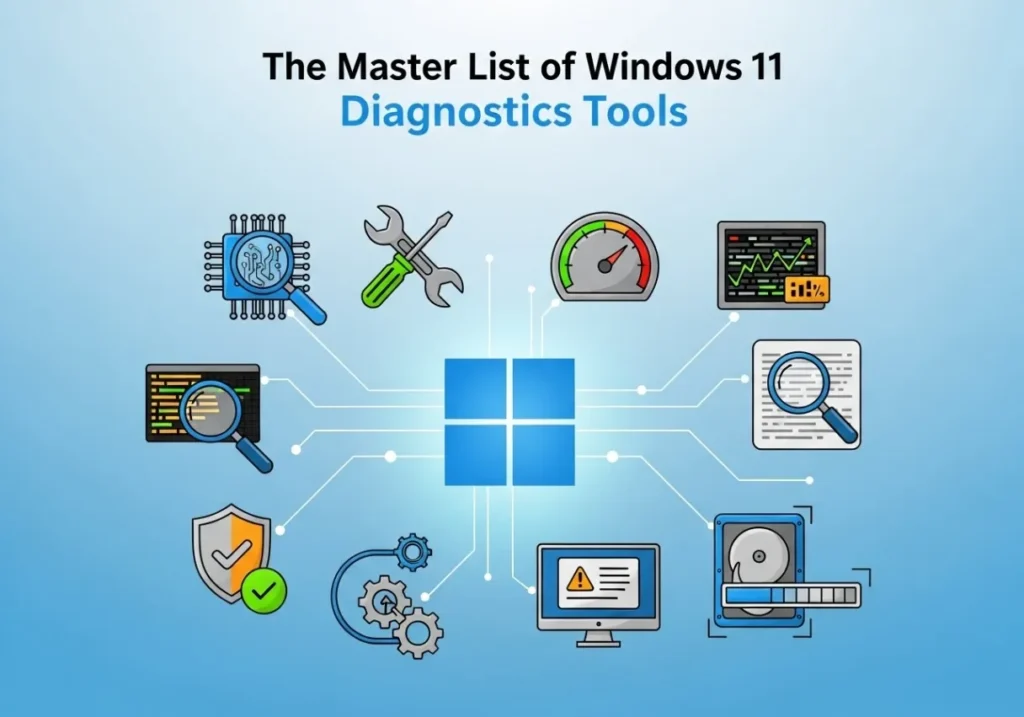
The Master List of Windows 11 Diagnostics
“My computer is slow.”
That is the most common, vague, and frustrating ticket in Desktop Support. Is it the network? The hard drive? A rogue Chrome tab? Or did they just not restart for 40 days?
To be a Tier 2 or Tier 3 technician, you need more than “Have you tried turning it off and on again?” You need specific diagnostics that prove exactly what is wrong.
This guide breaks down 15 essential diagnostic tools. But unlike other lists, we include a Real World Scenario for each one, so you know exactly when to use them.
Part 1: The “Big 3” GUI Tools
Start here. These built-in tools give you visual data instantly.
1. Reliability Monitor
perfmon /relShows a calendar view of every crash, update, and software install.
Ticket: “My computer crashed sometime last week, I think on Tuesday.”
Action: Open Reliability Monitor. Click on “Tuesday.”
Result: You see a Critical Event (Red X) at 2:00 PM labeled “Windows Update Failed.” Now you know it wasn’t hardware; it was a bad update.
2. Task Manager (Wait Chain)
taskmgrWe all use Task Manager. But do you use the “Analyze Wait Chain” feature?
Ticket: “Excel freezes every time I try to save.”
Action: Go to Details tab > Right-click Excel.exe > Analyze Wait Chain.
Result: It shows Excel is waiting for “splwow64.exe” (Print Spooler). The issue isn’t Excel; it’s a frozen printer driver.
3. Resource Monitor
resmonTask Manager shows CPU %, but Resource Monitor shows Disk Queue Length.
Ticket: “My computer is extremely slow, but CPU is only at 10%.”
Action: Open Resmon > Disk Tab.
Result: You see “Disk Queue Length” is at 5.0+ (very high), and “MsMpEng.exe” (Windows Defender) is scanning a massive 50GB zip file. The antivirus scan is killing the disk speed.
Part 2: The Repair Trinity (CMD)
When Windows is acting “weird” (Start menu broken, icons missing), run these as Admin.
Tool 4: System File Checker (SFC)
Ticket: “I get a DLL error every time I open Calculator.”
Solution: SFC scans protected Windows files. If `calc.exe` or its DLLs are corrupt, SFC replaces them with a cached good copy.
Tool 5: DISM (Deployment Image Servicing)
Ticket: “SFC failed to fix the files.”
Solution: If your local backup is also corrupt, DISM connects to Windows Update servers to download fresh system files. Run this, then run SFC again.
Tool 6: Check Disk (CHKDSK)
Ticket: “My laptop takes 20 minutes to boot up.”
Solution: The hard drive might have bad sectors. CHKDSK scans the physical disk surface and marks bad spots so Windows won’t use them anymore.
Part 3: Network Forensics
7. PathPing
pathping 8.8.8.8Traceroute is fast, but PathPing is accurate. It pings every hop 100 times.
Ticket: “The internet works, but Zoom calls keep dropping every 5 minutes.”
Action: Run PathPing.
Result: You see 0% loss at the Router, but 25% Packet Loss at “Hop 3” (The ISP node). This proves it is an ISP issue, not the user’s Wi-Fi.
8. Netsh Winsock Reset
Ticket: “I connected to the VPN, it crashed, and now I can’t browse any websites at all.”
Solution: The VPN client corrupted the network stack. This command nukes the network configuration back to factory default. (Reboot required).
Part 4: Hardware Stress Tests
9. Windows Memory Diagnostic
mdsched.exeTicket: “Random Blue Screens with different error codes every time.”
Diagnosis: Inconsistent BSODs usually mean RAM failure. This tool reboots and tests the physical memory sticks.
10. Battery Report
powercfg /batteryreportTicket: “My laptop battery goes from 100% to 0% in 20 minutes.”
Diagnosis: This generates an HTML report. Look at “Full Charge Capacity.” If it is less than 50% of “Design Capacity,” the battery is physically dead.
Part 5: Policy & Updates
11. GPResult
Ticket: “I requested the new Printer Mapping policy, but I still don’t see the printer.”
Action: Run this command to generate an HTML report.
Result: The report shows “Printer Policy: Denied (Security Filtering).” You realize the user wasn’t added to the correct Security Group in Active Directory.
12. Uptime Check
Ticket: “My PC is acting weird.”
Diagnosis: Check the “Statistics since…” line. If it says the PC has been on for 45 days, the “Fast Startup” feature is preventing a real shutdown. Force a reboot (`shutdown /r /t 0`).
13. BlueScreenView (NirSoft)
Windows creates a “dump file” when it crashes. You can’t read it natively. You need this tool.
Ticket: “PC crashes when I watch YouTube.”
Action: Open BlueScreenView.
Result: It highlights nvlddmkm.sys in pink. A quick Google shows this is the NVIDIA Graphics Driver. The fix is to update the GPU driver, not reinstall Windows.
Conclusion: The Process
Troubleshooting is a process of elimination.
1. Check Uptime (Did they reboot?)
2. Check Reliability Monitor (What changed recently?)
3. Isolate Network vs. Hardware (Ping vs Resmon).
4. If all else fails, run the Repair Trinity.
Bookmark this page. You will need it on Monday.



Your article helped me a lot, is there any more related content? Thanks!
Your point of view caught my eye and was very interesting. Thanks. I have a question for you.